
Details below provide\ service management software as a service, including IT services management (ITSM), IT operations management (ITOM), and IT business management (ITBM).
| Attributes | Axonius Cyber Assets | Axonius SaaS Applications |
|---|---|---|
| Service Account Required? | No | Yes |
| Service Account Permissions | Read permissions for all records of the tables sysevent_script_action, sys_email_filter, sys_dictionary, sys_properties password_policy, syslog_transaction, sysevent_script_action, v_plugins and sys_user | |
| Required Adapter Fields | Service Domain | Service Domain, User Name and Password, Multi-factor Authentication |
Types of Assets Fetched
This adapter fetches the following types of assets:
- Devices
- Users
- Roles
- Groups
- Application Settings (To fetch this information you need to configure the User name and Password fields. If 2FA is required for this application, the 2FA key must be provided.)
- Tickets
-
Permissions
- Use this adapter to fetch updates to tickets that were created by Axonius Enforcement Actions, provided these tickets have not been deleted from Axonius.
- Use the Service Tickets Fetch adapter, a flavor of the Service adapter, to fetch all tickets from:
- The incident table (this is the default behavior).
- Additional tables, if specified.
About Service
Use cases the adapter solves
An accurate Configuration Management Database (CMDB) is crucial for your ITSM program. It can often be a single source of truth for tracking and managing IT assets. Axonius will collect data across multiple different adapters to perform CMDB Reconciliation and Maintenance.
Data retrieved by Service
The data retrieved is highly customizable as each deployment can vary greatly. By default, Axonius will connect to the following tables and their child tables (tables can be added or removed with the adapter settings).
- cmdb_ci_computer
- cmdb_ci_vm
- cmdb_ci_vm_instance
- cmdb_ci_printer
- cmdb_ci_netgear
- u_cmdb_ci_computer_atm
- cmdb_ci_comm
- cmdb_ci_cluster
- cmdb_ci_cluster_vip
- cmdb_ci_facility_hardware
- cmdb_ci_msd
Axonius will connect to the user tables to fetch user information if enabled.
Axonius SaaS Applications Adapter Configuration
To Fetch SaaS data, some of the initial configurations in Service need to be performed by a user with administrator level privileges.
If the adapter has already been set up and you want to configure it to fetch application settings from SaaS data, make sure that the Service user can read records in the sys_properties table.
Parameters
The parameters that you need to fill out will differ based on the capabilities in your Axonius platform. 'General' pertains to users with Axonius Cyber Assets and/or Axonius SaaS Applications capabilities.
General
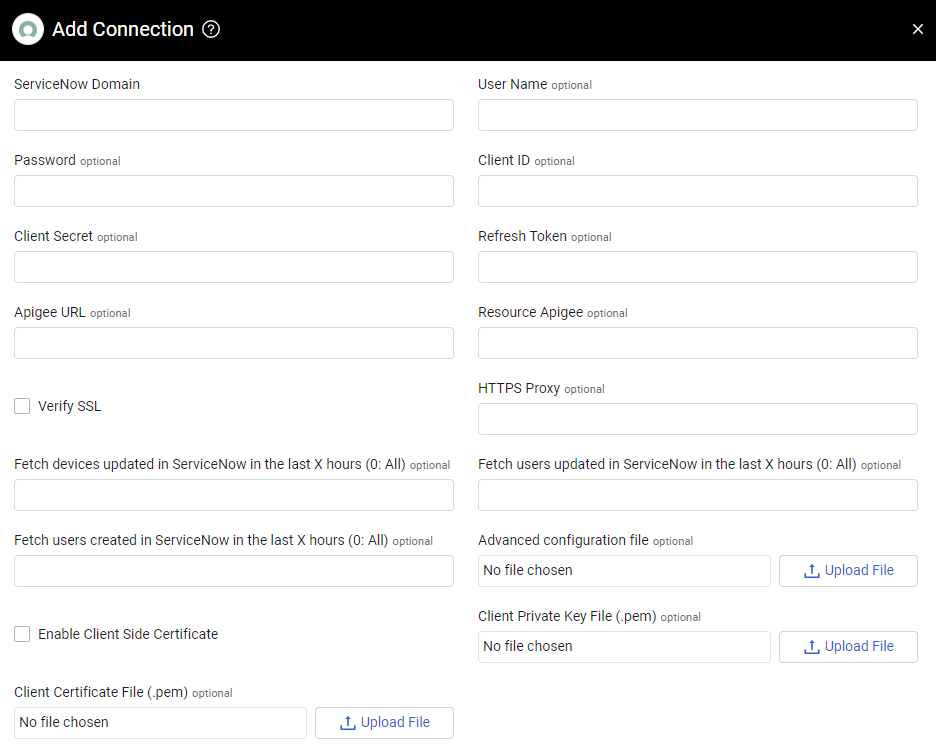
- User Name and Password (optional) - The credentials for a user account that has the Required Permissions to fetch assets.
- Client ID and Client Secret (optional) - The OAuth Client ID and Client Secret for OAuth access to Service. Refer to OAuth 2.0 with Inbound REST for full details on how to obtain the OAuth Token.
- Refresh Token - When using the OAuth method of authentication, enter the value of the Refresh Token issued by a Service instance.
- Apigee URL (optional) - The URL of the domain that the get request is sent to for acquiring APIgee token.
- Resource Apigee (optional) - The resources you want the APIgee to access.
- Verify SSL - Select to verify the SSL certificate offered by the value supplied in Service Domain. For more details, see SSL Trust & CA Settings.
- HTTPS Proxy (optional) - A proxy to use when connecting to the value supplied in Service Domain.
- Advanced configuration file (optional) - Upload an advanced configuration JSON file.
- Enable Client Side Certificate - Select to enable Axonius to send requests using the certificates uploaded to allow Mutual TLS configuration for this adapter. When you select this option, 2 more fields are displayed:
- Client Certificate File (.pem) - Adds a client side certificate to the connection.
-
Client Private Key File (.pem) - Adds a private key to the connection (if the API/proxy requires identification).
- Click Upload File next to Client Private Key File to upload a client private key file in PEM format
- Click Upload File next to Client Certificate File to upload a public key file in PEM format
Axonius Cyber Assets
To learn more about common adapter connection parameters and buttons, see Adding a New Adapter Connection.
Advanced Settings
Advanced settings can either apply to all connections for this adapter, or to a specific connection. Refer to Advanced Configuration for Adapters.
In Advanced Settings, at the top of the Advanced Configuration, you can choose asset types that are relevant to specific advanced configurations.
- From the dropdown, select one or more asset types.
- The relevant advanced configurations are displayed.
- Next to certain configurations, you can find a small info icon. Hover over the icon to see more information.
- The Advanced Configuration page is divided into sections, which can be collapsed to make it easier to navigate.
General
- Specify Class Names (Tables) to parse as Network Device assets - Enter device class names to locate for fetching devices as Network Device assets.
- Fetch from the following Read Replica category (Must be supported on instance) (optional) - Specify the name of a 'Read Replica' of the 'Operational' database to remove the load from the main database.
-
Use the following field when filtering last updated (optional) - Enter a field name to be used as the field that Axonius filters by for the following configurations Fetch devices updated in
- If a field is set, this adapter will fetch devices or users which have the set field that was updated in the time defined.
- When not supplied, this adapter will fetch devices or users which were last updated according to the ‘sys_updated_on’ field.
-
Additional user table names (optional) - Enter one or more table names separated by commas from which Axonius will fetch entries and parse them into users. Table names should be of the format 'cmdb_ci_my_linux_server'
- You can use this setting in 2 ways:
A list of tables to fetch in addition to the built-in tables. In this case the format should be table_name(, table_name). When the table names are separated by commas.
or
A list of tables with filters. In this case the format should be (table_name(:sysparm_query)(;table_na…)), when sysparm_query is a query with operators as defined in Operators available for filters and queries and each table name together with a query (filter) is separated by a semicolon. (Fields in brackets are optional parameters)- When supplied, this adapter will fetch data from all of the additional tables listed, make them into users, then proceed with fetching the default hardcoded subset of tables Axonius usually fetches from. The tables listed in this field take precedence over the default tables queried by Axonius, a Ci fetched from these tables will now be totally ignored as redundant in the later “default” fetching process.
- When not supplied, this adapter will not fetch data from any additional tables.
The settings here for filters on the table names listed in this field apply exclusively to the list of tables in this field. Other advanced settings that you make do not serve as filters to the table names listed in this field.
-
Entries fetched per page (required, default: 500) - Specify the maximum number of entries for this adapter to fetch per page when connecting to the server.
- The supplied value lets you control the performance of all the connections for this adapter. To reduce the number of requests sent, but to avoid impact on overall performance, you can reduce the Number of requests to perform in parallel value and increase the Entries fetched per page value.
- Date Format - Generally, the service automatically identifies the date format. In some cases, the identification is ambiguous. You can set a specific date format for timestamps. From the dropdown, select either: Automatically Identify, DD/MM/YYYY or MM/DD/YYYY. The default is Automatically Identify.
- Fetch Portfolio fields from u_ip_portfolio_mapping table - Select this option to fetch Portfolio fields in the u_ip_portfolio_mapping table.
-
Fetch common cost center details - Select this option to fetch information from the cmn_cost_center table.
Comments
0 comments
Please sign in to leave a comment.